Building for Equity: Facilities
Building for Equity: Facilities grants help organizations acquire, build, or renovate the brick-and-mortar buildings and spaces that make culture, science, and technology experiences possible. Projects with budgets of $10,000,000 and under are eligible.
Organizations must contact 4Culture staff by Tuesday, March 25, to complete an eligibility pre-screening for this grant. Starting February 20, access to the application will be provided after your organization’s eligibility has been pre-screened.
If you contact 4Culture after March 25, you can still access the application, but eligibility will no longer be pre-screened.
This grant is funded by King County’s Lodging Tax and sales tax through Doors Open legislation. Please review the eligibility requirements below and update your organization’s account profile before starting your application.
Steps to Apply
1
What Building for Equity: Facilities Funds
1
What Building for Equity: Facilities Funds
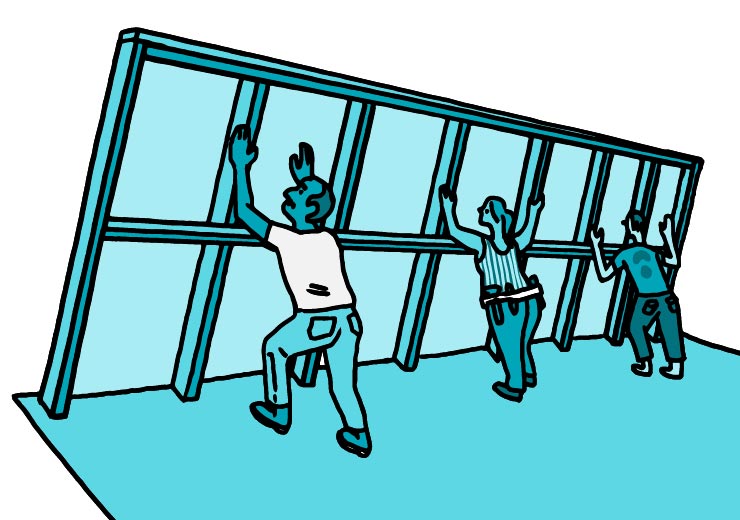
Facilities grants provide funding for building, remodeling, and buying specialized space that houses and facilitates culture, science and technology-based experiences in King County. Approximately $4.7 million is available in the funding pool for this cycle.
Organizations, governments, and public agencies that focus on the arts, heritage, historic preservation, or science and technology, and provide public benefit through their programs or activities, are eligible to apply.
Foundational to this grant is King County’s Building for Equity initiative to support cultural building projects, create a pathway to racial equity in cultural facilities funding, and provide a unique combination of funding, technical support, and strategic partnerships.
If your organization is looking for funding for equipment, we encourage you to check out our Equipment grant. Projects that consist of general maintenance and repairs, the purchase of consumable items like light bulbs and tools, regular staff salaries, or program expenses are not eligible for this grant.
There are three funding tracks for this program using a progressive percentage cap to determine the maximum amount you can request through this grant.
| Total Project Budget Size |
Maximum Amount You Can Request Through This Application |
| $250,000 and under | 80% of Your Project Budget |
| $250,001–$1,000,000 | $200,000 + 30% of Your Project Budget Over $250,000 |
| $1,000,001–$10,000,000 | $400,000 + 15% of Your Project Budget Over $1,000,000 up to a $1,000,000 maximum request |
For example:
- An organization with a project budget of $200,000 can request up to $160,000.
- An organization with a project budget of $550,000 can request up to $290,000.
- An organization with a project budget of $3 million can request up to $700,000.
During the panel review process, panelists may have questions about your project or application. You may be asked to schedule a 15-minute interview with the panel or provide a written or video response. Please be sure to check your email the week of May 27-28 to see if you have been asked to provide additional information. You will have approximately one week from when you hear from 4Culture to either schedule an interview or provide a reply. Being asked for additional details does not mean your application is more or less likely to receive funding.
Different contract requirements will accompany each application depending on the project size.
| Contract Requirements | Total Project Budget Size | |||
| $250,000 and Under | $250,001 – $1,000,000 | $1,000,001 – $10,000,000 | ||
| Acknowledging 4Culture Support: you will need to publicly recognize the support you receive from 4Culture. 4Culture’s support should be noted anywhere you recognize other project donors who have contributed similar amounts. | x | x | x | |
| Building for Equity Facilities Grant Contribution: if you receive an award, your organization is committing to provide three to nine hours of time to support the future of 4Culture’s Facilities grants. You may be asked to complete a survey, participate in a focus group, interview with 4Culture staff, provide a testimonial, or present at a 4Culture workshop. | Up to 3 hours | Up to 6 hours | Up to 9 hours | |
Public Benefit: Why It Matters
4Culture is a public agency supporting the cultural sector through revenue from Lodging Tax, 1% for Art, and Doors Open funding sources. Core to our work and defined in our Charter is a requirement that everything we fund serves the public interest, enriching communities throughout King County.
We define Public Benefit as the opportunity for King County residents and visitors to access and engage in arts, science, and other cultural activities, events, communities of practice, historic and cultural spaces, and works of public art related to our program areas. It is also a service requirement for all recipients of funding from 4Culture. Public benefit make it easier to experience culture.
Here are some ways that you can provide public benefit:
- Providing the public with access to your facility, creative work, project, or program for free or at a reduced rate.
- Free use of your facility or low-cost rental to other cultural groups. Please note: Projects with larger award amounts will be required to meet a Cultural Space Contribution Requirement through free facility use and/or technical support to smaller groups. The required contribution is in addition to the public benefit detailed in your application.
- Providing educational programs and experiences at cultural organizations, schools, or other venues accessible to the public.
- Participating in collaborative relationships with other cultural organizations, individuals, and groups to extend the reach and impact of a project or program for the benefit of the public.
- Organizational capacity-building projects or activities that provide meaningful public benefits not otherwise achievable.
- Providing, through technological and other means, services or programs in locations other than an organization’s own facilities.
Equity and Geographic Inclusion Public Benefit Requirements
Your project must have at least one Equity Inclusion Public Benefit and/or at least one Geographic Inclusion Public Benefit.
Examples of Equity Inclusion Public Benefits:
- Providing free or low-cost attendance to cultural organizations and cultural facilities for county residents who have economic, geographic, and/or other barriers to access.
- Providing free access to curriculum-related arts, science, and heritage programs for public school students with an emphasis on underserved students.
- Increasing the diversity of staff and governing boards of cultural organizations.
- Increasing opportunities for access to cultural facilities, programs, and services for diverse and underserved communities.
- Providing programming that appeals to diverse populations within the county.
- Planning and implementing cultural programs or collaborating with other cultural organizations to extend the reach and impact of cultural programs to diverse and underserved populations and communities.
Examples of Geographic Inclusion Public Benefits:
- Planning and implementing cultural programs and activities outside of Seattle.
- Partnering with other cultural organizations on cultural programs and activities outside Seattle, through direct investment or in-kind support, on priority projects and initiatives.
- Providing cultural programming to communities outside the city where your organization is primarily located, either directly or in partnership with other entities.
What’s Our Approach to Racial Equity?
With a focus on racial equity, 4Culture funds, supports, and advocates for culture to enhance the quality of life in King County. Our commitment to racial equity inspires us to cultivate the tools and practices needed to dismantle forms of oppression.
By centering communities that have historically faced barriers to acquiring and stewarding cultural space, the goal of this program is to create pathways toward a racially equitable cultural landscape in King County.
To read more visit:
Racial Equity at 4Culture
Mission, Vision, Values
Criteria
We fund all our grants through a competitive process, carefully evaluating each application. For this particular grant, we’ll look to see how well your project shows the following for a total of 50 points:
- Quality and Qualifications (10 points): the thought and reasoning you have put into your project planning, including assembling a qualified and prepared project team. How community input has informed your assessment of needs and helped to prioritize project outcomes. How this facility project was designed to help your organization fulfill its mission and address social, economic, and/or environmental challenges.
- Feasibility (10 points): your organization’s ability to administer and complete the project within the budgetary, logistical, and time constraints described in your application. 4Culture does not provide 100% of a facility project’s cost, so other support must be shown and a reasonable plan and timeline for raising all the funds needed is an essential part of your request. You must be able to start your project within 24 months of the award date and demonstrate financial stability through the budget and financial information you provide.
- Project Impact and Public Benefit (10 points): how this project will create positive change to meet the needs of the communities you serve, and will increase access to cultural facilities. What public benefits this project will provide visitors and residents of King County. (for example: increased programming abilities, additional audience capacity, increased accessibility for people with disabilities, etc.).
- Advancing Equity (10 points): your organization or facility project’s focus on including historically marginalized communities, especially communities that are disproportionately impacted by structural racism, in planning, development, execution, and final use and operation of this facility project. This is not a requirement for funding.
- Economic Impact (10 points): your organization and/or facilities project enhances the local economy, including staff and contractors employed, volunteer hours and in-kind donations leveraged, and other economic multipliers that accrue to King County, and indirect impacts like increasing commercial activity, activating physical spaces, and enhancing the vibrancy of communities.
Priority Projects
Projects located in 4Culture’s geographic priority areas shall receive additional consideration during the grant evaluation and awards process. Projects qualify as being in a geographic priority area by meeting one or more of the following requirements. Your project does not need to meet one of these to qualify; these only give certain projects priority:
- The project is outside of the City of Seattle.
- The project is located in a designated Community of Opportunity in King County. This is a geographic area experiencing the most significant social inequities. These designated areas are shown in purple on this map:
*The Community of Opportunity index is used to identify areas in King County experiencing the highest levels of need. Learn more about King County’s Community of Opportunity index.
2
Are You Eligible?
2
Are You Eligible?

Building for Equity: Facilities grants are available to King County-based, federally recognized nonprofit arts, cultural, heritage, historic preservation, science and technology organizations; public corporations, Tribal governments, and public agencies; or culture or science organizations that are fiscally sponsored by a 501(c)(3) partner organization. Applicants must have at least a two-year operating history and demonstrated long-term control of a physical site.
To apply, your organization must demonstrate it meets all of the eligibility requirements stated below.
Your Organization
- Your organization is based in and conducts a majority (51% or more) of your mission-based, public-facing activities in the County.
- Your organization is a federally recognized nonprofit organization or an organization that is fiscally sponsored by a 501(c)(3) organization. Please note: If you are using a fiscal sponsor to apply for this grant, you must have prior approval by 4Culture staff.
- Your organization is not a K-12 school or school district.
- Your organization has a board of directors, a proven two-year record of providing arts, cultural, or science experiences or services (you will be asked to provide two previous years of financial statements with the application), and the ability to sustain operations after the completion of this facility project.
- You can, if funded, provide a W-9 form, sign a contract that limits 4Culture’s liability, and provide proof of liability insurance that names 4Culture as additional insured.
- You have site control of the project location by the application deadline (April 17, 2025). This can mean property ownership or a long-term lease (10 years minimum or 5 years with an option to renew). A partnership agreement or Letter of Intent may be accepted depending on terms of these documents. 4Culture approved documentation will be required in the application. Please contact Maya Santos at to confirm if your documentation meets the grant requirements.
Science and Technology-based organizations must meet these additional eligibility requirements:
- Your organization must be incorporated in the state of Washington as a Nonprofit Corporation.
- OR you must be fiscally sponsored by a 501(c)(3) organization incorporated in the state of Washington and your fiscal sponsor also meets all of the Science and Technology-based organization eligibility criteria.
Science and Technology-based organizations and their fiscal sponsors may not be:
- A university, college, or institution of higher education.
- An agency of the state or any of its political subdivisions.
- A municipal corporation.
- An organization that raises money for redistribution to multiple cultural organizations.
- A radio or television broadcasting network or station, cable communications system, Internet-based communications venture or service, newspaper, or magazine.
Your Project
- Your project must be shovel-ready within two years (by June 25, 2027).
- Your project must consists of more than general maintenance and repairs or the purchase of consumable items like light bulbs and tools that are expendable as annual operations. All funds must be for capital costs and depreciable assets. See below for more information about eligible expenses.
- Your project cannot solely consist of feasibility studies or other early project planning steps. The project must include acquisition, construction, and/or renovation work. If the application is not for a complete project, the proposed project must complete a significant phase toward having a usable cultural facility.
Discipline Definitions
4Culture funds organizations and facility projects that are focused on Arts, Historic Preservation, Heritage, and Science and Technology. Below are definitions of each discipline.
- Arts: includes organizations focused on creative place-making, cultural festivals, dance, design, film, folk and traditional arts, literary arts, multidisciplinary arts, music, theater, and visual arts.
- Heritage: includes organizations focused on the preservation and transmission of local history; ethnic history; Native cultures; folklore and intangible cultural heritage; and historic and archaeological resources.
- Historic Preservation: includes organizations focused on advocacy or assistance to preserve, promote, and sustain historic places; education about our historic built environment; or stewarding historic properties that serve as a venue for cultural activities.
- Science + Technology: includes organizations focused on natural and social sciences, characterized by a formalized framework that entails the reproducible testing and revision of falsifiable ideas based on observable facts, as well as formal and applied sciences, such as mathematics and engineering. Applicants that are zoos or aquariums must also be accredited by the Association of Zoos and Aquariums.
If you’re not sure if your organization or project fits the organization and project eligibility requirements or you have a question about these criteria, please contact Maya Santos, Building for Equity Program Manager, at .
IMPORTANT: Organizations must contact 4Culture staff by Tuesday, March 25, to complete an eligibility pre-screening for this grant. Starting February 20, access to the application will be provided after your organization’s eligibility has been pre-screened.
If you contact 4Culture after March 25, you can still access the application, but eligibility will no longer be pre-screened.
Eligible Expenses
Imagine you can pick your facility project up and turn it upside down like a dollhouse—what stays in is an eligible expense for this grant. This basically means everything that is built in, bolted down, plumbed into walls, and/or wired into the building. This includes:
- Land acquisition costs
- Property acquisition costs
- Demolition and site prep costs
- Appraisals
- Environmental site assessments
- Inspection costs
- Closing costs
- Building zoning and permitting fees
- Project manager fee (up to 15% of the total project cost; only 1099 contractors; no FTE staff costs)
- Architectural costs
- Engineering costs
- Building and construction costs
- Construction-phase rentals
- Landscaping costs
- LEED or SEED certification costs
- Project-associated legal costs
- IT infrastructure (only if it is built into the walls)
- Built-in security systems
- Safety and fire suppression system costs
- HVAC systems
- ADA accessibility upgrades
- Permanently affixed signage
- Roof replacement
- Fiscal sponsorship costs (only the costs associated with this grant)
- Capital debt service payments, including interest (only in select cases; must provide loan documentation for 4Culture approval)
Eligible expenses incurred on or after January 1, 2024 are allowed.
Ineligible Expenses
- Furniture (tables, chairs, bookcases, etc.)
- Decorative items (art, photos, etc.)
- Computers and electronic devices (laptops, speakers, etc.)
- IT equipment (unless it’s built into the wall)
- Fundraising expenses
- Advertising, marketing, or PR expenses
- Moving costs
- Volunteer labor
- Feasibility studies
- Signage that is not affixed to the building
- FTE staff salaries and benefits
- Property or other project taxes
- General maintenance and repairs
Contact 4Culture to Confirm
- Mural projects on exterior walls
- Historic mural restoration
- Lighting systems
- Sound systems
- Vehicles (only in select cases in which the vehicle is the organization’s primary facility)
- Security deposits and lease payments (only those required with initial lease signing for new occupancy)
- Costs for any residential facilities (typically ineligible; please contact us if having residential facilities is essential to the arts, heritage, preservation and/or scientific public benefit your project provides.)
3
Helping You Succeed
3
Helping You Succeed
 Workshops
Workshops can make a big difference in the success of your application—each year, we find that the strongest applications come from people who have attended a workshop.
Workshops will be held virtually, with captioning available. You’ll need a Zoom account to join.
Note: April 7 will be an Office Hours session. There will be no formal presentation but grant managers will be on hand to answer any last-minute questions ahead of the April 17 application deadline.
Workshop Recording
If you were unable to make the Zoom workshop, you can view this recorded version instead:
Captions in English | Substitulos en Español
Application Guide and Worksheet
Watch this step-by-step application guide video to assist you in the application process:
Use these Application Worksheets to see what questions will be asked in the application and get tips from 4Culture staff on putting together a strong submission:
Application Worksheet for $1,000,000 project budgets and under:
PDF | Word
Application Worksheet for $1,000,001 project budgets and over:
PDF | Word
Please note: all applications must be submitted at apply.4culture.org by Thursday, April 17, 2025, at 5:00 pm PDT. No extensions will be granted. Using this worksheet is NOT an alternative to the online application form.
Field Resources
We support organizations implementing their facilities projects in ways that contribute to racial equity, geographic equity and equitable development. No matter where you are in your process, we are here to help. Visit our Building for Equity: Field Resources page, for an ongoing list of resources to help you achieve your facility project goals.
Contact Us
We’re here to help! Contact us by March 25 if you are interested in applying or have a question about this program. Starting February 20, access to the application will be provided after your organization’s eligibility has been pre-screened.If you contact 4Culture after March 25, you can still access the application, but eligibility will no longer be pre-screened. We look forward to getting to know you and your facility project.
Maya Santos, Building for Equity Program Manager
206-263-0691
Lauren Miles, Building for Equity Support Specialist
206-263-3210
You can contact us about:
- Your organization and/or project eligibility status.
- Accessing the grant application.
- The panel review process, award notifications, eligible expenses, contracting, and reimbursement/payments.
- Review grant application drafts.
- Scheduling a site visit or a meeting.
4Culture has engaged capital project funding consultants who can help you frame your project in the application. All consultants have extensive experience with cultural facilities projects.
Contact Maya Santos at to be connected to a consultant.
These consultants are:
 Matthew Richter
Principal, Cultural.Space
Senior Advisor, The Cultural Space Agency
Former Cultural Space Liaison, City of Seattle
 Stephen Yamada-Heidner
Executive Director, Architects Without Borders Seattle
Former Project Manager, Olson Kundig
You can contact them about:
- Determining organizational readiness for a capital project.
- Approaching project brainstorming, planning, and timeline.
- Advice on scaling your project.
- Presenting your vision in the application
- General information about best practices for capital projects.
This additional resource is intended to complement the information provided through 4Culture’s website, workshops, and staff. Consultants are not involved in funding decisions and will not share anything discussed in your consultation with the 4Culture team unless they need additional information to answer your questions.
Translation and Assistance
Building for Equity Facilities grants help organizations acquire, build, or renovate the brick-and-mortar buildings and spaces that make culture, and science and technology possible. Projects with budgets of $10,000,000 and under are eligible.
Organizations must contact 4Culture staff by Tuesday, March 25, to complete an eligibility pre-screening for this grant. Starting February 20, access to the application will be provided after your organization’s eligibility has been pre-screened. If you contact 4Culture after March 25, you can still access the application, but eligibility will no longer be pre-screened.
The deadline to apply via 4Culture’s online platform is Apr 17 at 5:00 pm PDT. We’re here to help! Please contact Maya Santos, Building for Equity Program Manager at with questions about this program.
The grant guidelines, a detailed explanation of how to apply, and the grant application are in English. If this is a barrier that stops you from applying due to limited English writing ability, visual impairment, or you would like to request assistance to create an application, please contact or call (206) 296-7580 or TTY 711, and we will ensure you get the support you need.
中文 (Chinese)
“为公平而建设”设施补助金旨在帮助组织购置、建造或修缮实体建筑与空间,为文化、科学和技术发展提供支持。该补助金适用于预算为 10,000,000 美元及以下的项目。
组织必须在 3 月 25 日星期二之前联系 4Culture 工作人员,完成此项补助金的资格预筛选。从 2 月 20 日起,通过资格预筛选的组织即有权开始申请。如果您在 3 月 25 日之后联系 4Culture,您仍然可以进行申请,但不会再对您进行资格预筛选
通过 4Culture 在线平台申请的截止日期为 4 月 17 日 下午 5 点 (PDT)。我们随时为您提供帮助!如对该计划有任何疑问,请通过 联系“为公平而建设”的项目经理 Maya Santos。
如何进行申请的补助金详细解释指南以及补助金申请均以英文予以提供。如果由于英语写作能力有限、视力障碍而妨碍您对本补助金的申请,或者您希望请求协助来创建申请,请发送电子邮件至 或致电 (206) 296-7580 或 TTY 711 进行联系,我们会确保您获得所需的相关支持。
Русский (Russian)
Организации, участвующие в программе финансирования объектов недвижимости Building for Equity («Построение равенства»), помогают организациям приобретать, строить или реконструировать здания и помещения, которые планируется использовать для развития культуры, науки и технологий. Подать заявку могут проекты с бюджетом до 10 000 000 долл. США.
Для участия в конкурсе необходимо связаться с сотрудниками 4Culture до вторника, 25 марта, чтобы пройти предварительную проверку на соответствие требованиям. С 20 февраля подать заявку можно будет только после успешного прохождения предварительной проверки. Если вы обратитесь в 4Culture после 25 марта, вы все равно сможете заполнить заявку, но проверка на соответствие требованиям проводиться уже не будет.
Крайний срок подачи заявок через онлайн-платформу 4Culture — 17 апреля до 17:00 (по тихоокеанскому времени). Мы готовы вам помочь! По вопросам, связанным с программой Building for Equity, обращайтесь к менеджеру Maya Santos по адресу электронной почты:
Правила предоставления гранта, подробная инструкция по подаче заявки, а также сама заявка на грант составлены на английском языке. Если вы не можете подать заявку из-за недостаточного владения письменной английской речью или нарушений зрения, либо нуждаетесь в помощи для создания заявки, напишите по адресу: или позвоните по телефону (206) 296-7580 или TTY 711. Мы предоставим вам всю необходимую поддержку.
Soomaali (Somali)
Deeqaha Dhisidda Xarumaha Sinnaanta waxay ururada ka caawiyaan inay helaan, dhisaan, ama dayactiraan dhismayaasha bulukeetiga iyo shamiitada ah iyo goobaha suurtagalinaya dhaqanka, iyo sayniska iyo tignoolajiyada. Mashaariicda leh miisaaniyadaha $10,000,000 iyo ka yar ayaa u qalma.
Ururadu waa inay la xiriiraan shaqaalaha 4Culture ugu dambayn Talaado, Maarso 25, si ay u maraan baaritaanka hore ee u-qalmitaanka deeqdan. Laga bilaabo Febraayo 20, helitaanka codsiga ayaa la bixin doonaa kadib marka uqalmitaanka ururkaaga horay loo sii baaray. Haddii aad la xiriirto 4Culture kadib Maarso 25, weli waad heli kartaa codsiga, laakiin uqalmitaanka horay looma sii baari doono.
Waqtiga kama dambaysta ah ee laga codsanayo gudaha madasha oonleenka ah ee 4Culture waa Abriil 17 saacadda 5:00 pm PDT. Waxaan diyaar u nahay inaan ku caawino! Fadlan la xiriir Maya Santos, Maamulaha Barnaamijka Dhisidda Sinnaanta hadaad qabto su’aalo ku saabsan barnaamijkan.
Tilmaamaha deeqda, sharraxaada faahfaahsan ee ku saabsan sida loo codsado, iyo codsiga deeqda waxay dhammaan ku qoran yihiin Af-Ingiriisi. Haddii arrintaan ay tahay caqabad kaa hor istaageyso codsashada oo ay sabab u tahay awoodda qorista Af-Ingiriisiga oo xadidan, naafanimo aragga ah, ama aad jeclaan lahayd inaad codsato in lagaa caawiyo in aad codsi sameyso, fadlan la xiriir ama wac (206) 296-7580 ama TTY 711, waxaana xaqiijin doonnaa inaad hesho taageerada aad u baahan tahay.
Español (Spanish)
Las subvenciones para las instalaciones de Desarrollo para la Equidad ayudan a las organizaciones a adquirir, construir o renovar los edificios y espacios tradicionales que hacen posible la cultura, la ciencia y la tecnología. Son elegibles aquellos proyectos con presupuestos por un monto igual o inferior a $10.000.000.
Las organizaciones deben ponerse en contacto con el personal de 4Culture antes del martes 25 de marzo para completar una preselección de elegibilidad para esta subvención. A partir del 20 de febrero, se proporcionará acceso a la solicitud una vez que se haya comprobado la elegibilidad de su organización. Si se pone en contacto con 4Culture después del 25 de marzo, podrá seguir accediendo a la solicitud, pero ya no se preseleccionará la elegibilidad.
Tiene tiempo para presentar la solicitud a través de la plataforma en línea de 4Culture hasta el 17 de abril a las 5:00 p. m. (hora del Pacífico). ¡Estamos para ayudarle! Póngase en contacto con Maya Santos, Directora del Programa de Desarrollo para la Equidad, al correo electrónico si tiene preguntas concernientes a este programa.
Las pautas de la subvención, la explicación detallada de cómo enviar la solicitud y la solicitud de la subvención están en inglés. Si esto le impide enviar una solicitud debido a una limitación en la capacidad para escribir en inglés, si tiene una discapacidad visual o si desea recibir asistencia para crear una solicitud, escriba a o llame al (206) 296-7580 o TTY 711, y nos aseguraremos de que obtenga la ayuda que necesita.
Tiếng Việt (Vietnamese)
Khoản tài trợ Cơ Sở Hạ Tầng Xây Dựng vì Công Bằng giúp các tổ chức mua lại, xây dựng hoặc cải tạo những tòa nhà và không gian vật lý nhằm thúc đẩy văn hóa, khoa học và công nghệ. Các dự án có ngân sách từ $10.000.000 trở xuống đều đủ điều kiện.
Các tổ chức phải liên hệ với nhân viên 4Culture trước thứ ba, ngày 25 tháng 3 để hoàn tất quá trình sàng lọc trước về tính đủ điều kiện nhận khoản tài trợ này. Bắt đầu từ ngày 20 tháng 2, sẽ có thể truy cập các đơn đăng ký sau khi tổ chức của quý vị được sàng lọc trước. Nếu liên hệ với 4Culture sau ngày 25 tháng 3, quý vị vẫn có thể truy cập đơn đăng lý, nhưng tính đủ điều kiện sẽ không được sàng lọc trước nữa.
Hạn chót nộp đơn đăng ký thông qua nền tảng trực tuyến của 4Culture là ngày 17 tháng 4 lúc 5:00 chiều theo giờ PDT. Chúng tôi luôn sẵn sàng hỗ trợ! Vui lòng liên hệ với Maya Santos, Giám Đốc Chương Trình Xây Dựng vì Công Bằng tại để được giải đáp thắc mắc về chương trình này.
Các hướng dẫn về khoản tài trợ, giải thích chi tiết về cách nộp đơn và đơn đăng ký tài trợ đều bằng tiếng Anh. Nếu đây là rào cản khiến quý vị không thể nộp đơn đăng ký do khả năng viết tiếng Anh hạn chế, suy giảm thị lực hoặc quý vị muốn yêu cầu hỗ trợ để tạo đơn đăng ký, làm ơn liên hệ hoặc gọi (206) 296-7580 hoặc TTY 711 và chúng tôi sẽ hỗ trợ những gì quý vị cần.
4
After You Submit
4
After You Submit
 Panel Process
We make all our funding decisions through a panel process, in which a group of peers assesses your application. 4Culture staff facilitates the panel process but does not vote or try to influence the outcome.
Interviews and Panel Questions
During the panel review process, panelists may have questions about your project or application. You may be asked to schedule a 15-minute interview with the panel or provide a written or video response. Please be sure to check your email May 27-28, 2025, to see if you have been asked to provide additional information. You will have approximately one week from when you hear from 4Culture to either schedule an interview or provide a reply. Being asked for additional details in either scenario does not mean your application is more or less likely to receive funding.
Timeline
The deadline for this grant is April 17, 2025 at 5:00 pm PDT. Award decisions will be announced in June, and contracting will begin in September.
Contracts and Payment
If we select your project for funding, your program manager will work with you to create a contract outlining a payment schedule. Reminder: eligible expenses are those spent on or after January 1, 2024.
Requirements and Appeals
Learn about what will be required if you are awarded a grant, and about the process for appeal of a 4Culture decision.
5
Apply
5
Apply

You must contact us if you are interested in applying by Tuesday, March 25 to complete an eligibility pre-screening for this grant. Starting February 20, access to the application will be provided after your organization’s eligibility has been pre-screened.
If you contact 4Culture after March 25, you can still access the application, but eligibility will no longer be pre-screened.
If eligible, 4Culture staff will provide you the private link to the Building for Equity: Facilities grant application you will fill out through our online grant portal. We highly suggest you make sure you have an active 4Culture account and that your organization profile is up to date now to confirm your eligibility for this grant.
Once you’ve started your application, you can save after each step and sign out—your application will be saved as a draft that you can continue to work on up to the deadline. Once you click “Submit,” your application is final. Please do not hesitate to contact us if you have any questions during the process.
Need help? Watch this video on how to access your 4Culture account and application.
What’s in the Application?
We strongly recommend assembling the following materials before you begin your application so you can cut and paste the information into your application. Feel free to call or email us with any questions as you work on preparing this information in advance.
If you are applying as a fiscally sponsored group, please contact Maya Santos, Building for Equity Program Manager, at to get more specific application details. As a reminder, if you are using a fiscal sponsor to apply for this grant, you must have prior approval by 4Culture staff.
Demographic Information
Your organization profile in our portal must provide demographic information for your board and staff for the current year. We use this information to help us understand how well we are doing in our efforts to reach all communities in King County. Read our privacy policy for information about how we protect your information. Your application is not complete if your demographic information is not updated for the current year.
Project budget
Use our Budget Form in the online application—you only need to fill out the line items that pertain to your project.
Financial information
Please check your organization’s most recent fiscal year information from your 990 in our grant application portal as part of your organization’s profile. Make certain it is up to date! If you have never provided us with this information, we want your two most recent years.
Activities list
The panel will review your list of events and primary activities from the last 24-months to better understand your organization and how it serves the public. Please include location and audience sizes—be as specific as possible. You can cut and paste from a Word document into the application section or enter information directly.
Board list
Submit a list of your organization’s board members, their terms, and occupations in this section of the application. You can cut and paste from a Word document or enter information directly.
Balance sheet
You will be asked to provide information from your year-end balance sheet, in whatever format you present it in your financials.
Rendering/plan/illustration (optional)
You may submit a PDF of up to 2 pages that help to show the panel your project—this is not required but can help to explain a remodel plan or complex project budget.
Equity in Development and Construction
You will be asked questions about your racial equity efforts, strategies, and processes within your organization and your project. This is no longer a separate assessment and has been streamlined and integrated into the application.
Economic Impact
You will be asked about the economic impacts your project will have in King County. Economic impact can be measured in many ways – please share any data and narratives that your organization has collected. 4Culture also recognizes the long-term economic benefits of improved education, strong community ties, or community development.
Important reminders:
- Contact 4Culture staff by Tuesday, March 25 to complete an eligibility pre-screening.
- Starting February 20, access to the application will be provided after your organization’s eligibility has been pre-screened.
- If you contact 4Culture after March 25, you can still access the application, but eligibility will no longer be pre-screened.
- We recommend drafting your application offline before entering your final content on your application in the portal and save your work often.
- Attend an information workshop or view the workshop recording.
- Get support on your application from one of our Capital Project Funding Consultants. Contact Maya Santos at to be get connected at no cost.
- Don’t wait until the last minute. Contact 4Culture staff if you are interested in applying as soon as possible.
- If you have trouble uploading documents or saving/submitting your application, please contact Lauren Miles at lauren.miles@4culture.org or (206) 263-3210 immediately.